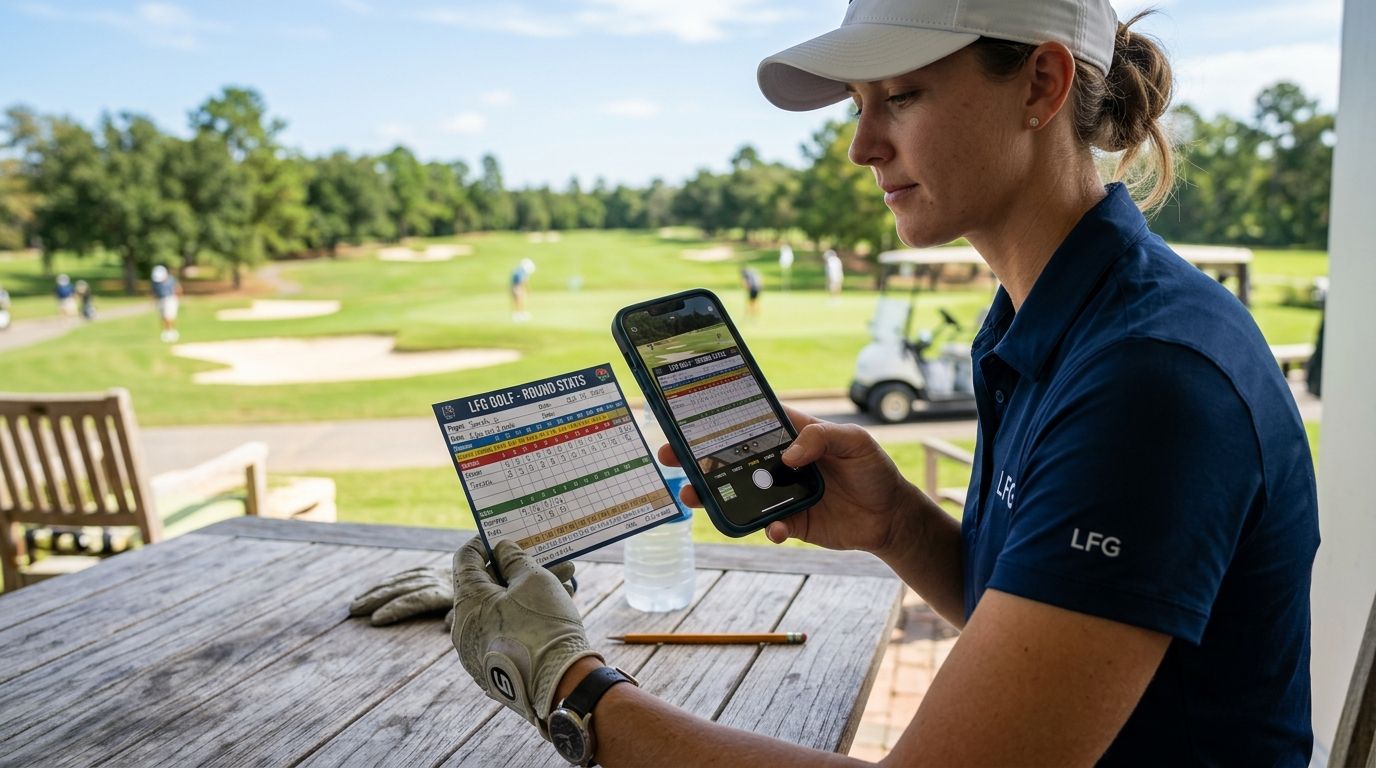
You just posted a career-low round and the stat card LFG Golfing generated is sitting in your phone's share sheet, not your camera roll. Instead of re-opening the app every time you want that card for a text thread or a printed scorecard wall, save it to Apple Photos once and it lives there forever, easy to pull up in any group chat.
- Saving golf stat cards to Apple Photos takes under 15 seconds using the iOS share sheet's Save Image option.
- LFG Golfing generates the card first, then hands it to iOS to save, share, or print.
- Grant Photos access the first time you save or the card silently fails to appear in your camera roll.
- Batch-saving works for full trip recaps, not just single rounds, so an entire buddies trip lands in one album.
- Low-res or blank saves in 2026 almost always trace back to a denied permission prompt, not an app bug.
Why this matters
A stat card only does its job once it's out of the app and into a group chat, an Instagram story, or a printed trip recap. Screenshots crop weird and lose quality. Saving the actual card file keeps the resolution sharp and the card ready to text at 11pm after the round without hunting through old rounds.
Golfers who track courses played already know the value of a clean record. The stat card is the shareable version of that record, and 2026 iPhones handle the save-and-share loop faster than any screenshot workaround ever did.
Before you start
- An iPhone running a current iOS version — the share sheet's Save Image button has worked the same way for several iOS generations, so this applies whether you updated in 2026 or you're a version behind.
- A logged round or trip in LFG Golfing with a generated stat card ready on screen — you can't save what hasn't been created yet.
- The gotcha: if you tap Save Image and nothing shows up in Photos, it's not a bug, it's a blocked permission. iOS asks for Photos access the first time any app tries to write an image, and if you tapped Don't Allow back when you installed the app, every save after that fails silently with no error message.
Generate your stat card
- Open LFG Golfing and go to the round or trip you want to turn into a card.
- Tap the share icon on the stat card screen — it's the square-with-arrow icon standard across iOS apps.
- Wait for the card to render. You'll see your scores, course name, and trip stats laid out on the card preview before the share sheet pops up.
Expected result: the iOS share sheet slides up from the bottom with your finished stat card image at the top.
Save the card to Photos
- In the share sheet, scroll the row of app icons until you see Save Image.
- Tap Save Image once. There's no confirmation screen, no loading spinner — it saves instantly.
- If this is your first save, iOS will prompt for Photos access. Tap Allow Access to All Photos or Select Photos depending on how much of your library you want the app touching.
Expected result: the share sheet closes and the card is now in your camera roll, sorted under Recents.
Confirm the save worked
- Open the Photos app.
- Tap Recents.
- Your stat card should be the newest image at the top of the grid.
If it's not there, the permission prompt was likely dismissed or denied. Head to Settings > LFG Golfing > Photos and switch it to All Photos or Add Photos Only, then repeat the save.
Save an entire trip recap at once
If you're wrapping up a buddies trip instead of a single round, the same share-and-save flow works on the trip-level stat card, not just individual rounds. Open the trip summary in LFG Golfing, tap the share icon on the full trip card, and hit Save Image. This grabs the combined trip stats as one image instead of forcing you to save each round separately.
This matters more than it sounds like for group golf trips with friends: a four-day trip generates four individual round cards plus one recap card, and saving only the recap keeps your camera roll from filling with near-duplicate images.
Troubleshooting
- Save Image doesn't appear in the share sheet. Scroll further right — iOS sorts share sheet options by recent use, and Save Image can get pushed past the visible row on first use. Tap More at the end of the row if it's still missing.
- The saved image is blank or white. This happens if you tap Save Image before the card finishes rendering. Wait for the score numbers to actually populate on screen before opening the share sheet.
- Nothing saves and there's no error. Check Settings > LFG Golfing > Photos. If it reads None, the app has zero write access and every save attempt fails without telling you.
- The card looks blurry when you reshare it. Texting apps recompress images. Save the original from Photos and share it directly through iMessage rather than re-sharing a copy someone already sent you.
- Duplicate cards from the same round. If you generated the card twice — once right after the round, once later to double-check a stat — both versions land in Photos. Delete the older one from Recents to keep your library clean.
Customize your workflow
Once saving is automatic in your head, the next move is building a habit around it. Save the card the second the round ends, before you're back in the clubhouse and distracted. If you play in a regular group, agree on one person saving and texting the recap card so the group chat isn't flooded with four separate versions of the same round.
For golfers who want the sharing side dialed in further, the setup pairs well with how you're already sharing stats in your group chat and, for trip golfers specifically, with building a golf trip highlight reel out of saved cards from every round on the trip.
Start logging rounds today
Track every course, pool your buddies trips, and generate stat cards worth saving.
FAQ
How do I save a golf stat card to Apple Photos in 2026?
Open the stat card in LFG Golfing, tap the share icon, then tap Save Image in the iOS share sheet. The card lands in your camera roll under Recents within a second.
Why isn't my stat card saving to Photos?
The app almost always lacks Photos permission. Go to Settings, find LFG Golfing, tap Photos, and switch access to All Photos or Add Photos Only, then try the save again.
Can I save an entire golf trip recap card, not just one round?
Yes. Open the trip-level summary instead of a single round, tap the share icon on that card, and hit Save Image. It saves the combined trip stats as one image.
Does saving a stat card lower its image quality?
No. Saving through the share sheet keeps the original resolution. Quality only drops if the image gets recompressed later through a messaging app resharing an already-shared copy.
Do I need cell service to save a stat card to Photos?
No. The save happens locally between the app and your Photos library, so it works with the phone in airplane mode on the back nine with no signal.
What's the difference between screenshotting a stat card and saving it?
A screenshot captures your entire screen including status bar and app chrome, often cropped awkwardly. Saving the actual card file gives you a clean, full-resolution image sized exactly for sharing.
Can I choose which Photos album a stat card saves to?
The initial save always goes to Camera Roll and Recents. From there you can manually add the image to any custom album inside the Photos app.
One last thing
Most golfers only save the final stat card, then wonder later why they can't find the mid-round moment showing the eagle on 14. Save the card after every notable stretch, not just at the end of the round — it costs 15 seconds and gives you a running photo trail instead of one flat summary. Come 2026 trip season, that habit is the difference between a group chat with one recap image and one with an actual story to scroll through.