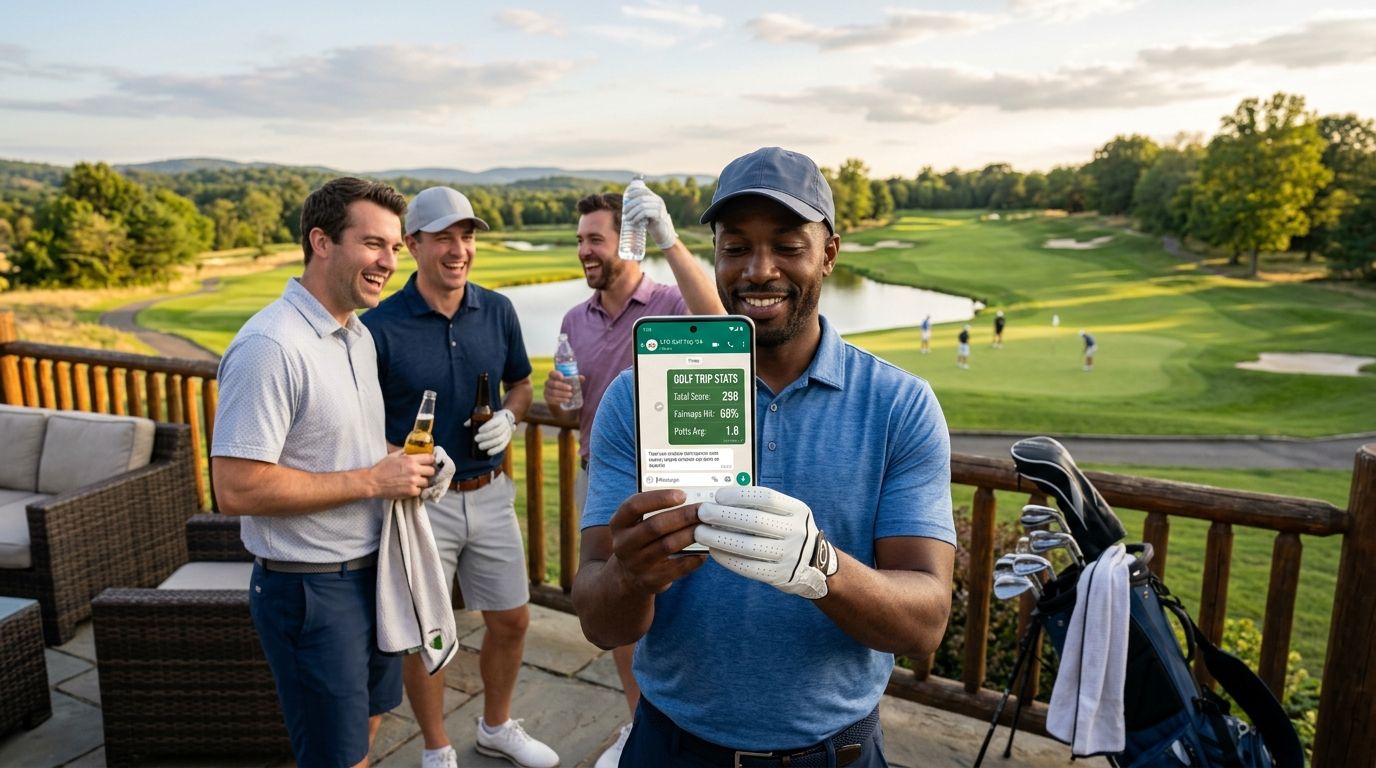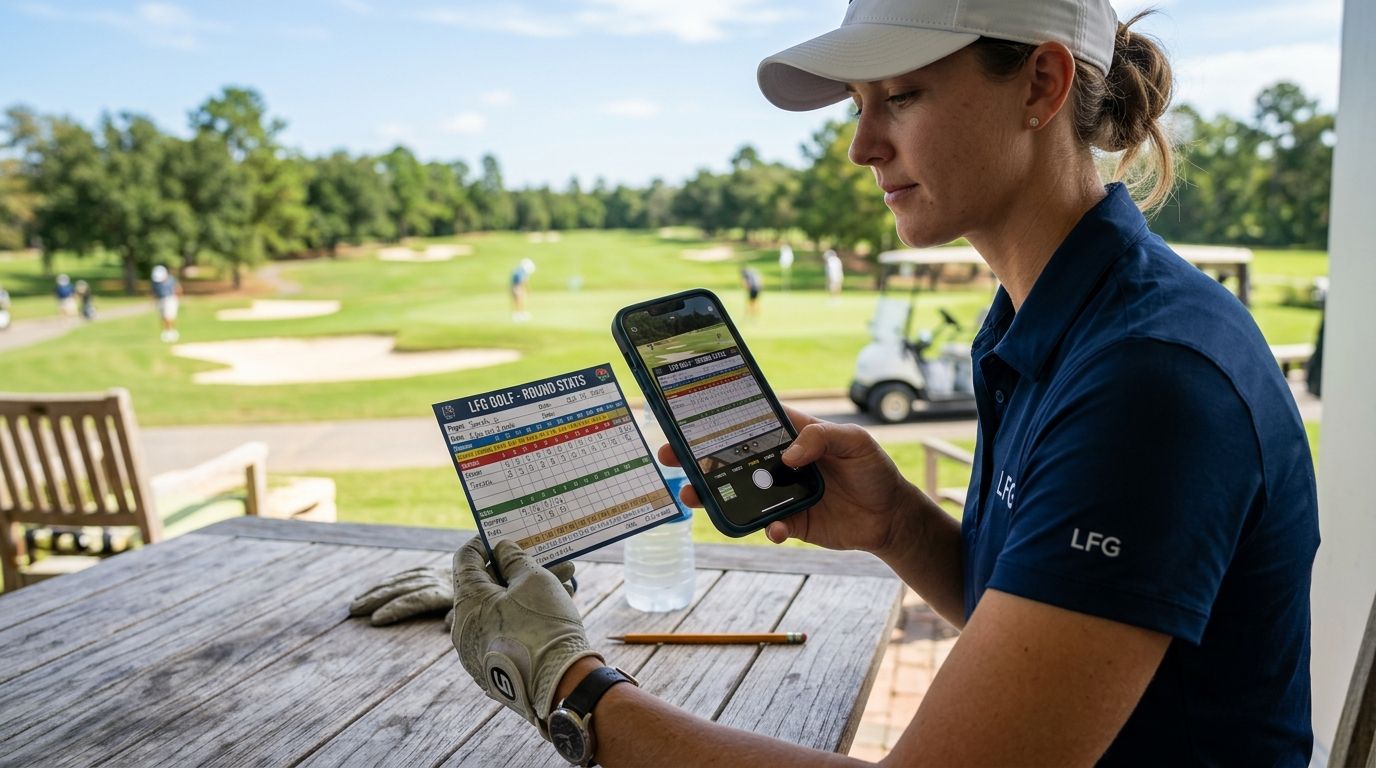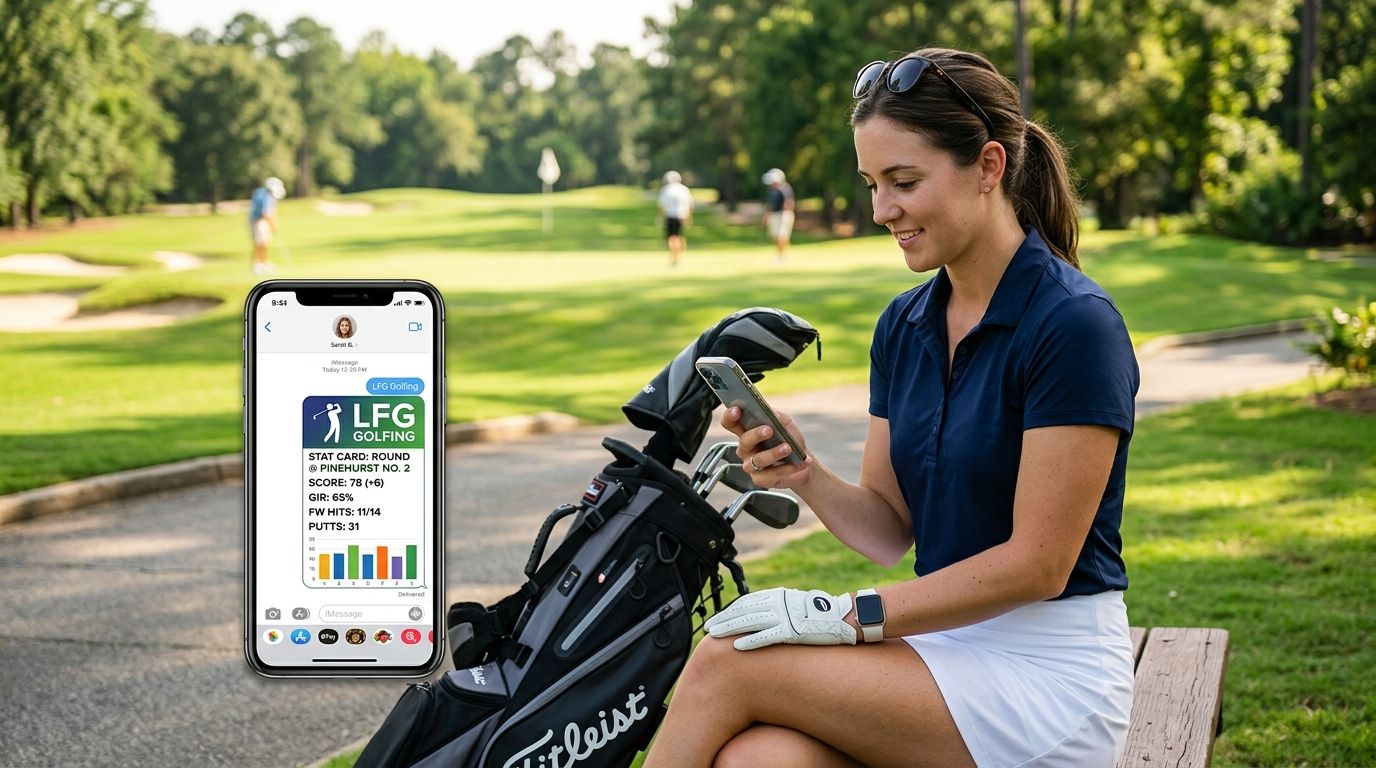
Your stat card looks great sitting in LFG Golfing — but if it never leaves the app, nobody in the group chat actually sees your 78 or that eagle on 14. Instead of screenshotting a screenshot and losing half the card in a crop, use the built-in share sheet to send a clean stat card straight into iMessage in about 10 seconds.
- Generate the card first, then tap Share Card inside LFG Golfing before opening iMessage.
- Use the native iOS share sheet, not a screenshot, to keep the card at full resolution.
- Send to an existing group thread the same way you'd send any photo — pick Messages from the share sheet.
- Trip recap cards work the same way but pull stats from every round in the trip, not just one.
- Sending to an Android number in the same thread compresses the card through MMS.
Why this matters
A stat card is only worth making if your group actually sees it before the next round. Text threads are where golf trip trash talk lives in 2026 — not a separate app, not a shared album nobody opens. If your card takes four taps and a screenshot, half your foursome won't bother, and the card that should be starting an argument about who really shot 82 just sits in your camera roll.
LFG Golfing builds the share step into the round itself so the card goes from your scorecard to the group chat without leaving the app twice. That's the whole point of a shareable stat card — it's built for the group chat, not for scrolling through your own gallery.
Before you start
- A round logged in LFG Golfing. You need at least one completed round (or an active trip) before there's a stat card to generate.
- Messages set up on the phone you're sharing from. If you're testing this on a phone without an active iMessage account, the share sheet still works but the card sends as a plain MMS.
- The gotcha: if anyone in the group thread is on Android, the card lands as a compressed MMS image instead of a full-quality iMessage photo. The card is still readable, but the crisp text on birdies and pars gets softer. If image quality matters — say you're sending a trip recap card you want people to zoom into — send it in an all-iPhone thread first, then forward separately if needed.
Generate your stat card
- Open LFG Golfing and go to the round you want to share (or the active trip, if you're sending a trip recap).
- Tap Share Card on the round summary screen. LFG Golfing builds the card with your score, key stats, and course name baked in — you don't need to screenshot anything.
- Wait for the card preview to load fully before tapping share. A half-loaded card that gets shared too fast can send with a placeholder graphic instead of your actual stats.
Expected result: you're looking at a finished stat card on screen with a share icon or Share button visible below or beside it.
Open the iOS share sheet
- Tap the Share icon (the square with the upward arrow) under the stat card.
- iOS opens the native share sheet — the same one you'd see sharing a photo from your camera roll.
- Scroll the row of apps until you see Messages. Tap it.
Expected result: iOS switches you into a Messages compose screen with the stat card already attached as an image.
Send it straight to a group chat thread
- In the Messages compose screen, tap the To field.
- Start typing the name of your existing group thread — your regular Saturday foursome, your buddies trip group, whatever it's called in your contacts.
- Select the thread from the list that pops up. If it's a group you've texted before, it should appear near the top.
- Add a caption if you want (something like "78 today, new personal best") and hit Send.
Expected result: the card lands in the group thread as a full-size image everyone can tap to zoom, save, or react to.
Share a trip recap card instead of a single round
If you were tracking a multi-day trip in LFG Golfing rather than a single round, the same flow applies with one difference: you're generating the card from the trip summary, not a single scorecard.
- Open the trip inside LFG Golfing instead of an individual round.
- Tap Share Card on the trip summary — this pulls combined stats across every round logged during the trip, not just one day.
- Follow the same steps above: tap Share, choose Messages, pick the group thread, send.
This is the version most golf trip group chats actually want at the end of the weekend — one card that sums up who won, who choked, and who improved most across all four rounds instead of four separate cards nobody scrolls back to find. If you'd rather keep a copy for yourself before sending it out, the process for saving a card to your camera roll first is a quick detour — saving stat cards to Apple Photos covers that exact step.
Troubleshooting
- Messages doesn't show up in the share sheet. Scroll further right in the app row, or tap More at the end of the row and toggle Messages on. iOS sometimes hides apps you haven't shared to recently.
- The card sends blurry or pixelated. This almost always means it went out over MMS to an Android number in the thread, or the card was shared before it fully rendered. Regenerate the card and wait for the preview to finish loading.
- The group thread doesn't appear when you search the To field. Type the exact name saved in your Contacts for that group, not a nickname you use casually. If the thread has no saved name, search by one member's name instead.
- You want to send the same card to two different threads. Send it once, then reopen the card in LFG Golfing and repeat the share sheet steps rather than trying to forward it from inside Messages — forwarding can strip the original resolution.
- The card shows the wrong round's stats. Double check you tapped Share Card from the round you meant to send — LFG Golfing generates a fresh card per round, so an old tap on the wrong scorecard pulls old numbers.
Customize your workflow
Once sharing a single stat card feels automatic, the bigger win is making the group chat the default landing spot for every round you log, not an afterthought after you've already closed the app. Some groups set a rule: whoever shoots their personal best that round has to send the card before anyone leaves the parking lot. Others just send every round automatically as part of closing out the day.
If your whole reason for using LFG Golfing is keeping a running scoreboard with the same group of friends, it's worth reading up on how other groups structure that — see best golf apps for sharing stats in your group chat for how the card-and-chat combo compares to other tracking setups people use for the same purpose in 2026.
FAQ
How do I share golf stat cards in iMessage from LFG Golfing?
Open the round or trip in LFG Golfing, tap Share Card, then choose Messages from the iOS share sheet and pick your group thread. The card sends as a full-size image, not a screenshot.
Why does my stat card look blurry when I send it?
Blurry cards usually mean the image went out as MMS instead of iMessage, which happens when an Android number is in the thread. Sending to an all-iPhone group keeps the card at full resolution.
Can I share a whole trip's stats instead of just one round?
Yes. Open the trip summary in LFG Golfing instead of a single round and tap Share Card — it generates one card combining stats across every round logged during the trip.
Do I need to save the card to Photos before sending it in Messages?
No, the share sheet sends the card directly without saving it first. Saving to Photos is a separate step if you just want a personal copy.
Why isn't Messages showing up in my share sheet?
iOS sometimes hides less-used apps from the share row. Tap More at the end of the app icons and toggle Messages on so it appears every time.
Can I send the same stat card to more than one group chat?
Yes, reopen the card from LFG Golfing and repeat the Share, Messages, and thread selection steps for each group rather than forwarding it inside Messages, which can lower the image quality.
Does sharing a stat card in iMessage cost anything?
Sharing itself doesn't add a separate step or fee beyond your regular messaging plan — it uses the same Messages app and thread you already text your group in.
Will the stat card show the wrong round if I tap the wrong one?
Yes, LFG Golfing generates a fresh card per round or trip, so tapping Share Card from an old round sends old stats. Confirm you're on the correct round summary before sharing.
One last thing
The detail that trips people up most in 2026 isn't the share sheet — it's the blue bubble versus green bubble difference. A card sent iPhone to iPhone through iMessage keeps its full resolution; the same card sent to even one Android number in a mixed group thread gets compressed down through MMS. If your group has a mix of phones and the card matters — like a trip recap you want people to actually zoom in on — send it through the all-iPhone side of the group first.